 Gantt Chart Maker
How to make a Gantt chart
Seven steps from a blank page to a working schedule — what to do at each stage, and the small decisions that make or break the result.
Building a Gantt chart is less about the software and more about the thinking that goes into it. The chart is just the picture; the value is in the order you do things, the durations you commit to, and the dependencies you make explicit. Get those right and almost any tool will draw you something useful. Get them wrong and the prettiest chart in the world is still a fiction.
Here is the process that works, in seven steps. None of it is tied to a particular product — you can follow it on paper, in a spreadsheet, or in a dedicated app, and we will compare those three at the end.
Step 1 — List the tasks
Start by writing down everything the project involves. Don't worry about order or dates yet — just get the work out of your head and onto the page. The trap here is going either too coarse or too fine. "Build the website" is a project, not a task; "name the CSS variable for the header" is noise. Aim for items that take somewhere between half a day and two weeks each.
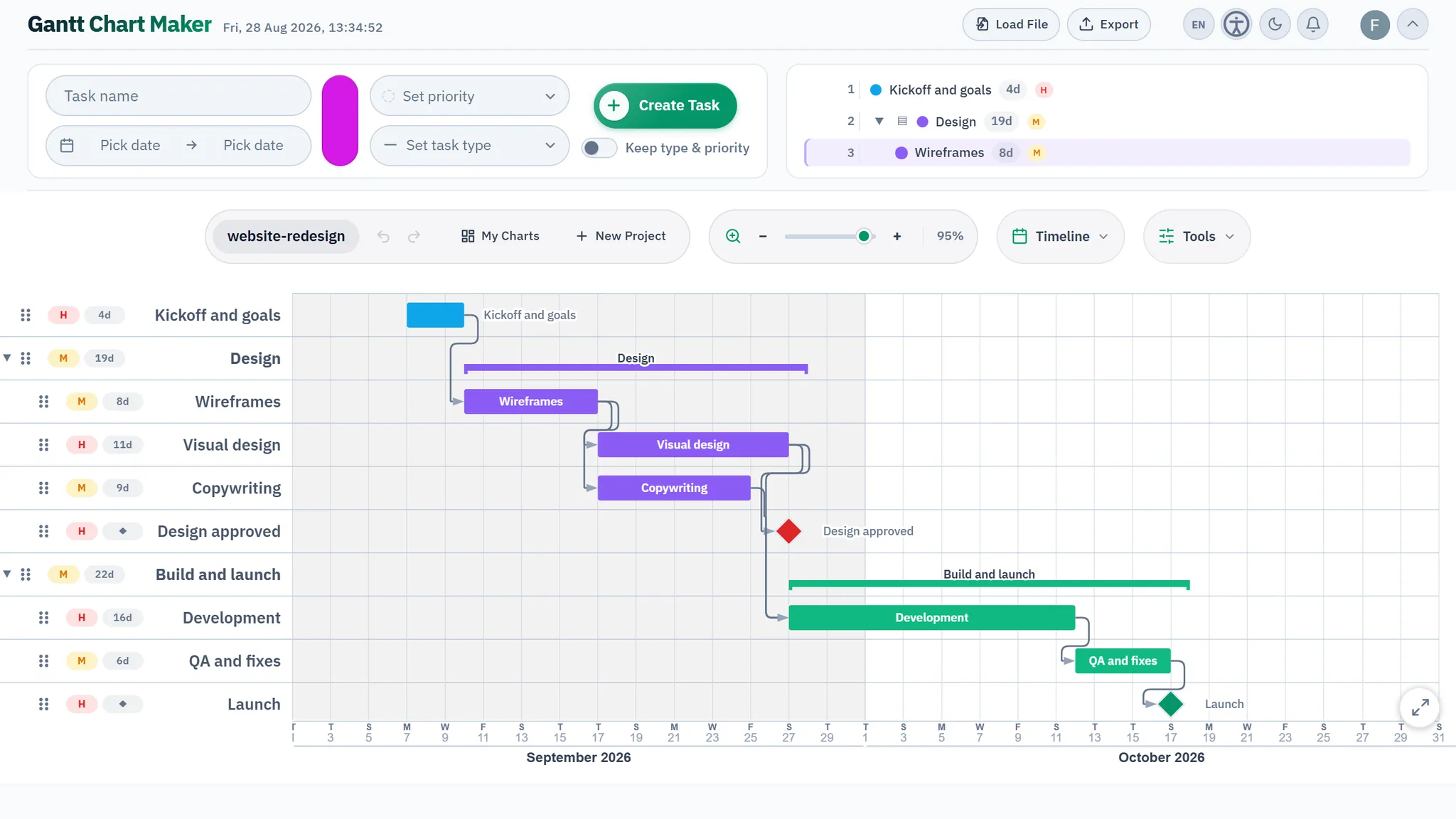
The disciplined way to produce this list is a work breakdown structure — you decompose the whole deliverable into chunks, then break each chunk down until the pieces are small enough to estimate and assign. Even a rough WBS beats brainstorming tasks at random, because it stops you forgetting whole branches of work. Group related tasks into phases as you go; most charts read far better with five collapsible phases than with forty loose rows.
Step 2 — Estimate how long each task takes
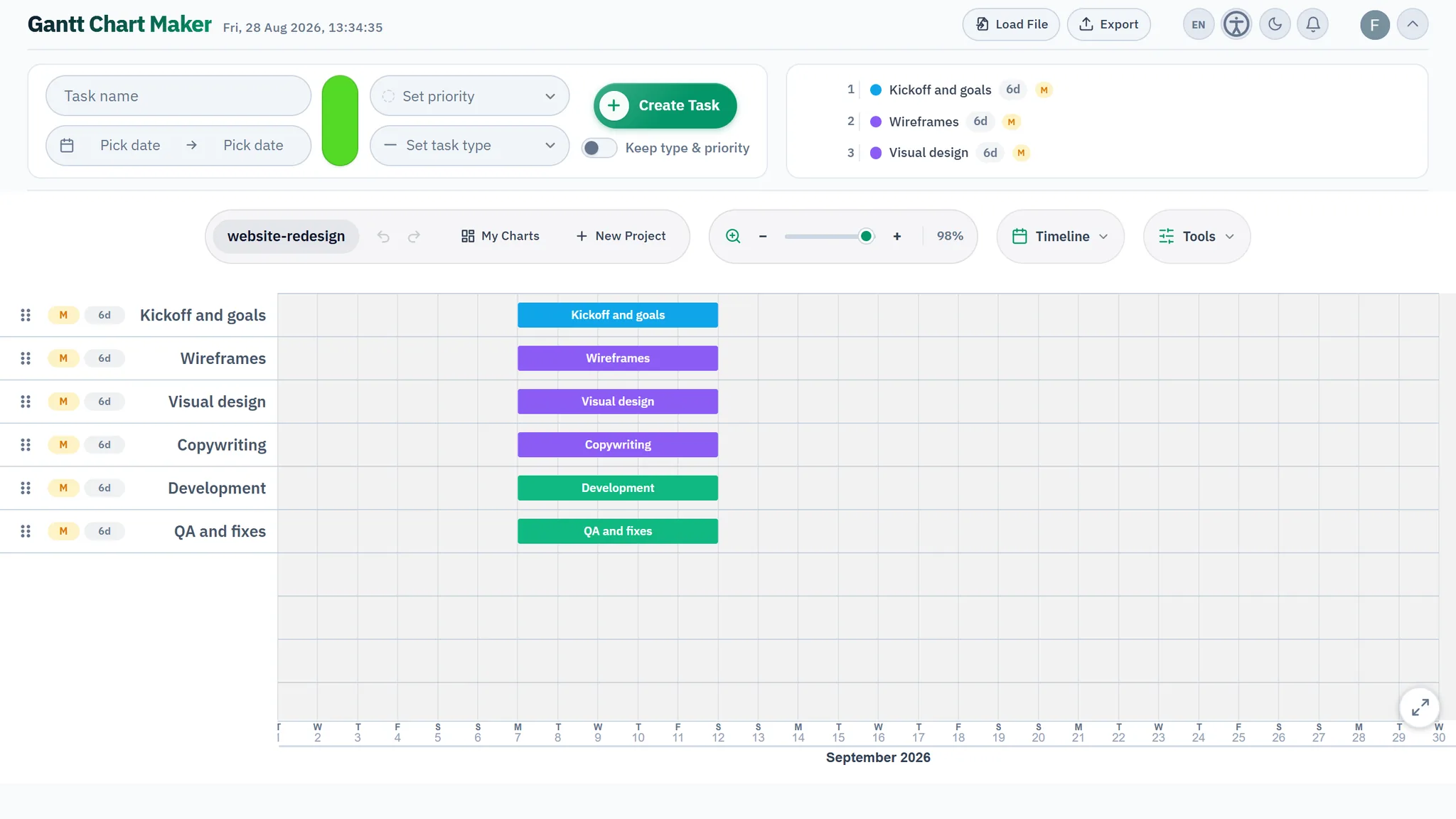
Now put a duration against every task. This is the step people rush, and it's the one that quietly determines whether your end date is believable. Estimate effort and duration separately: a task might be four hours of work but span three days because the person doing it has other commitments. The bars on a Gantt chart show duration — elapsed calendar time — not effort.
There's a craft to this, covered in how to estimate task durations, but the short version: base estimates on past work where you can, pad nothing silently, and be suspicious of any task estimated in round numbers you've never measured. If you genuinely don't know, say so and schedule a small spike to find out rather than inventing a confident-looking number.
Step 3 — Sequence the work and add dependencies
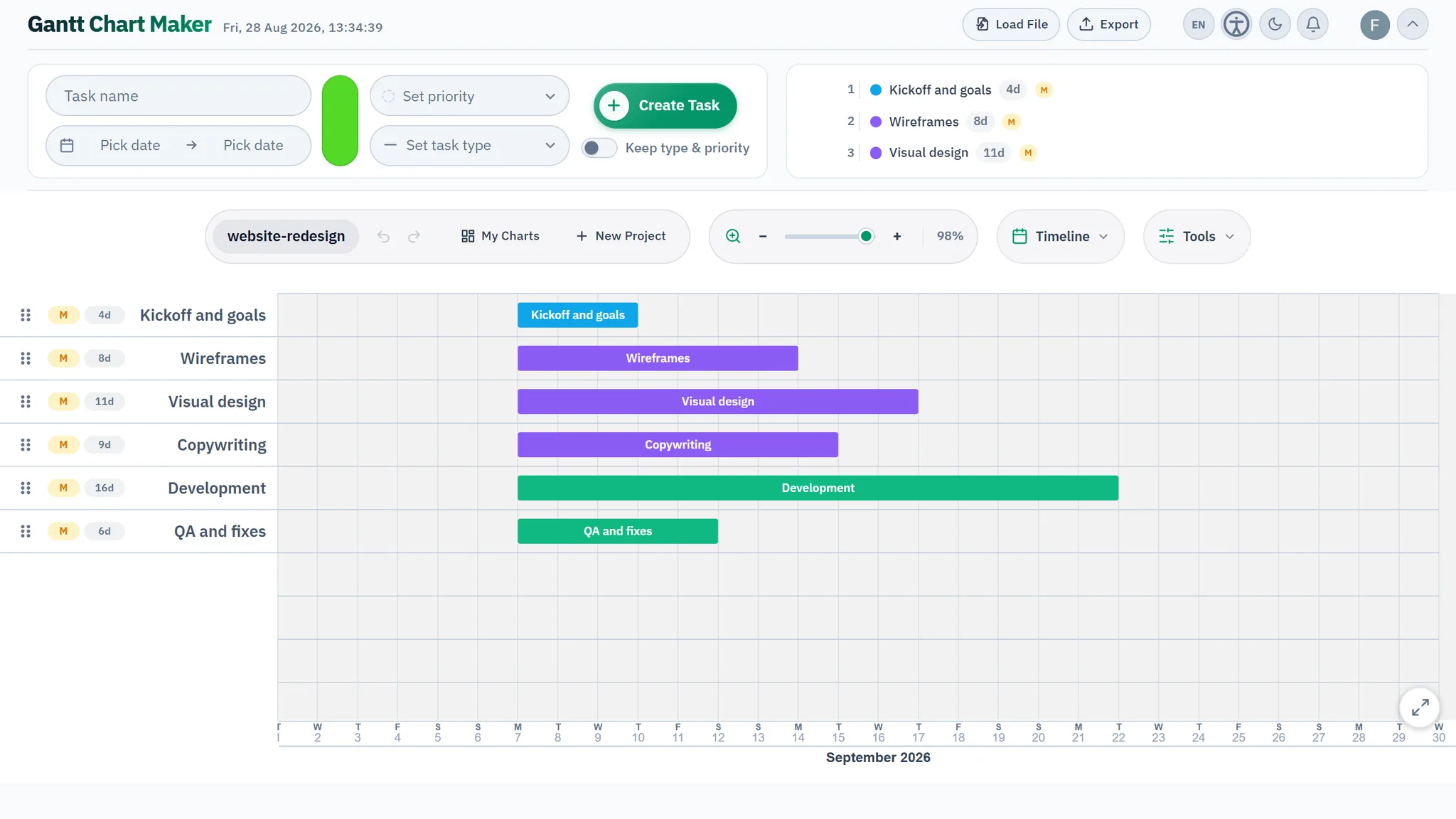
With tasks and durations in hand, decide what has to happen before what. This is where a list becomes a schedule. Draw a link wherever one task genuinely needs another's output — "you can't paint until the plaster is dry." Those links are task dependencies, and most of them are the simple finish-to-start kind: A must finish before B can start.
Resist the urge to chain everything in a neat line. If two tasks could run in either order, leave them unlinked — a false dependency makes the plan look more rigid and more fragile than reality. The point of this step is to expose the real constraints, not to impose tidy-looking ones.
A useful test: for every link you draw, finish the sentence "B can't start until A is done because…". If you can't, it's probably not a real dependency — it's a habit or a guess about resourcing, and it belongs somewhere else.
Step 4 — Add milestones
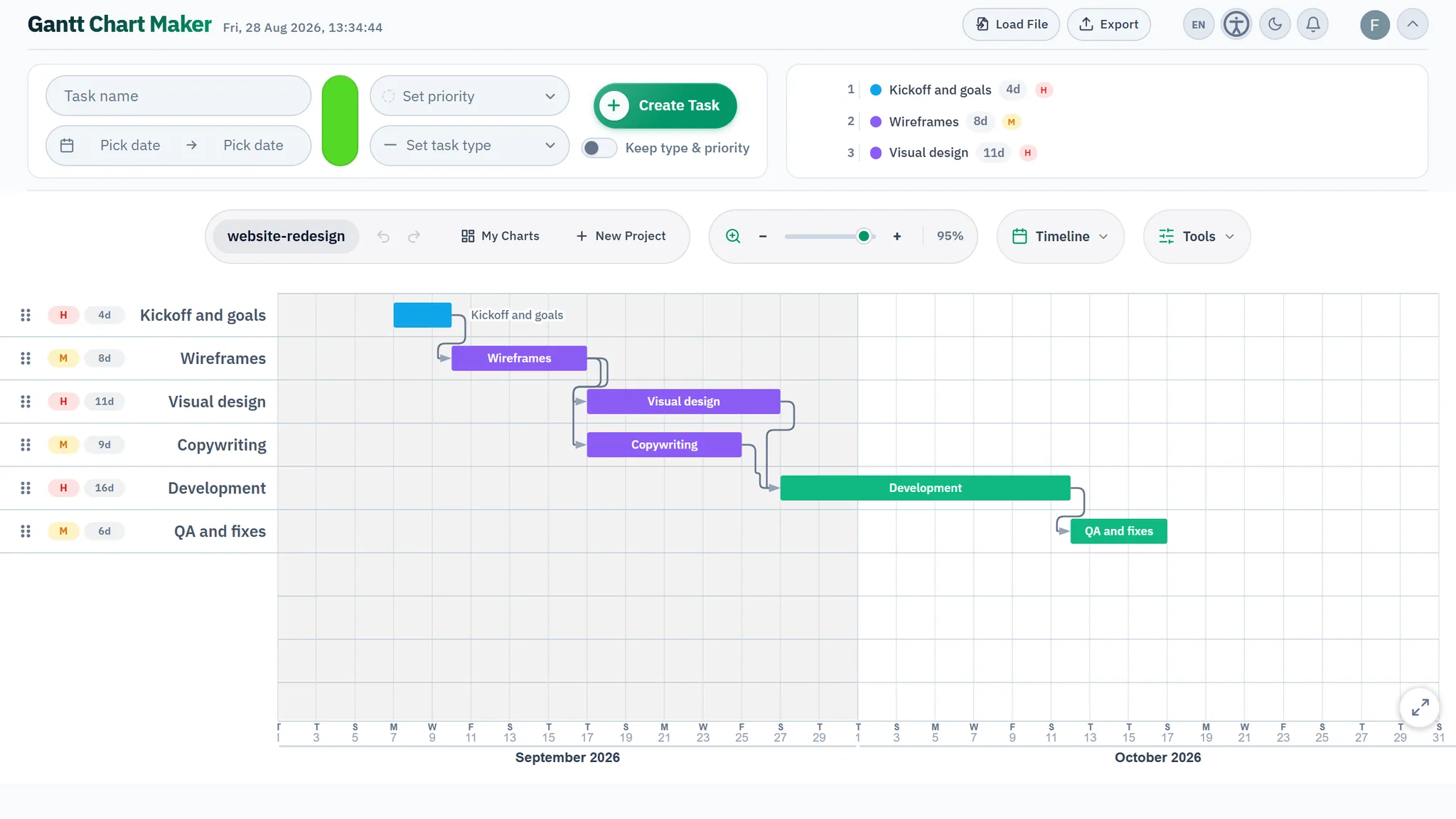
Milestones are the moments that matter but take no time themselves: a sign-off, a launch, a delivery, a hard external deadline. On the chart they're drawn as a diamond rather than a bar, because they have a date but no duration. The distinction is worth getting right — see milestones vs tasks — but the practical rule is simple: if it has length, it's a task; if it's an instant, it's a milestone.
Good milestones give a plan a spine. Drop one at the end of each phase and at every point where someone outside the team is expecting something. They're also what you'll report against, because "we hit the design sign-off on the 14th" is a far clearer status than "design is about 80% done."
Step 5 — Place everything on the timeline
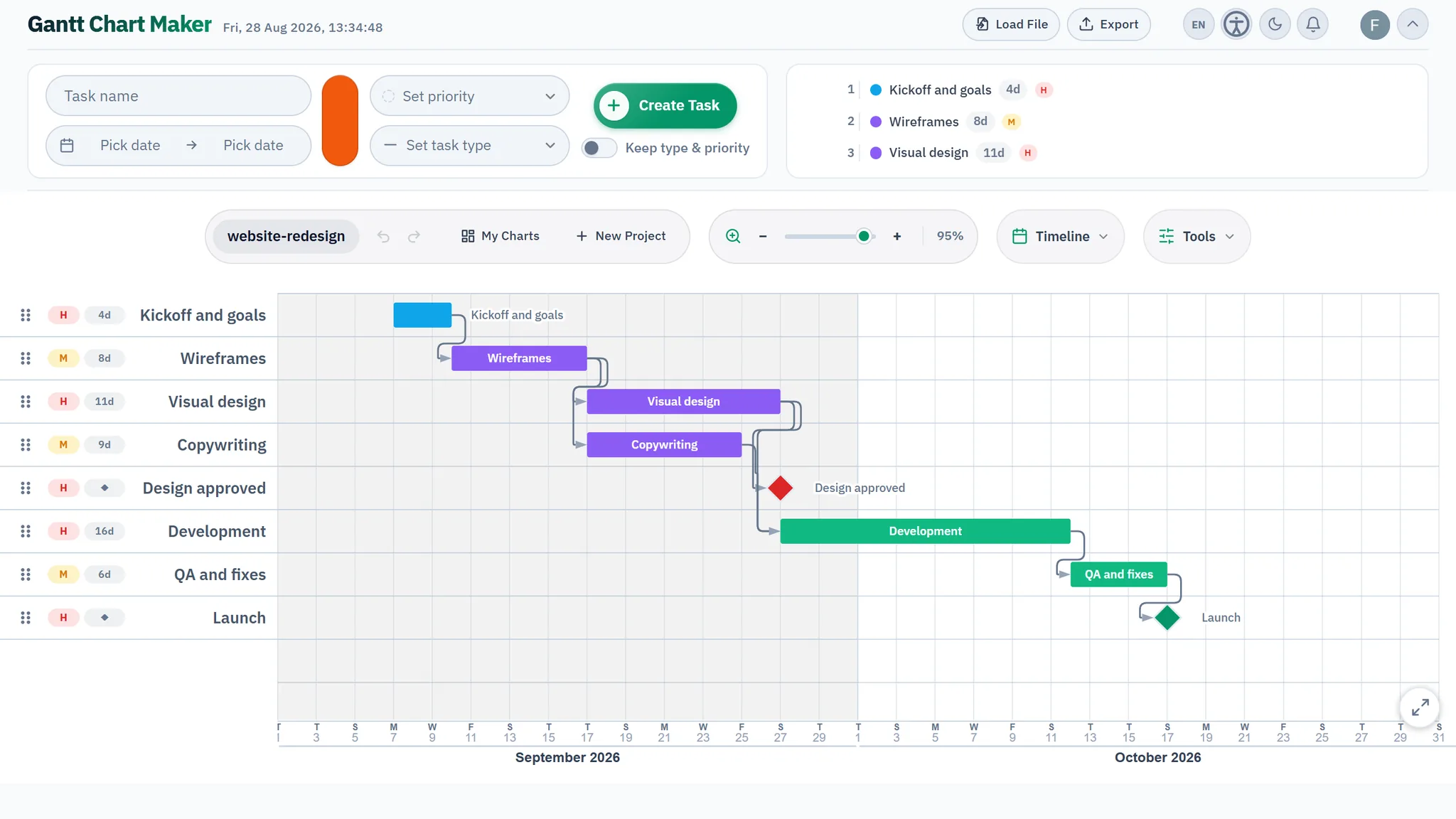
Now the chart actually appears. Set a start date for the project, and the dependencies you drew in step 3 will do most of the work of positioning everything else — each task slots in after the things it waits on. You'll usually only pin a hard date on a few tasks: the ones constrained by the outside world, like "the venue is only free from the 9th."
This is the moment the plan first talks back to you. The end date that falls out of the timeline is rarely the one you hoped for. That's not the chart being unhelpful — it's the chart being honest, and it's far better to learn it now than two weeks before the deadline. If the date is unacceptable, you adjust the inputs (scope, sequence, resourcing), not the picture.
Step 6 — Find the critical path
Trace the longest chain of dependent tasks from start to finish. That chain is your critical path, and it sets the earliest the project can possibly end. Every task on it has zero slack — slip one day and the whole project slips a day. Tasks off the critical path have some float: they can wobble without moving the finish.
Knowing which is which changes how you manage. The critical-path tasks are where your attention, your best people, and your contingency belong. Many tools will highlight this chain automatically once dependencies are in place; if yours doesn't, you can find it by hand, and it's worth the ten minutes.
Step 7 — Add progress, a today line, and keep it updated
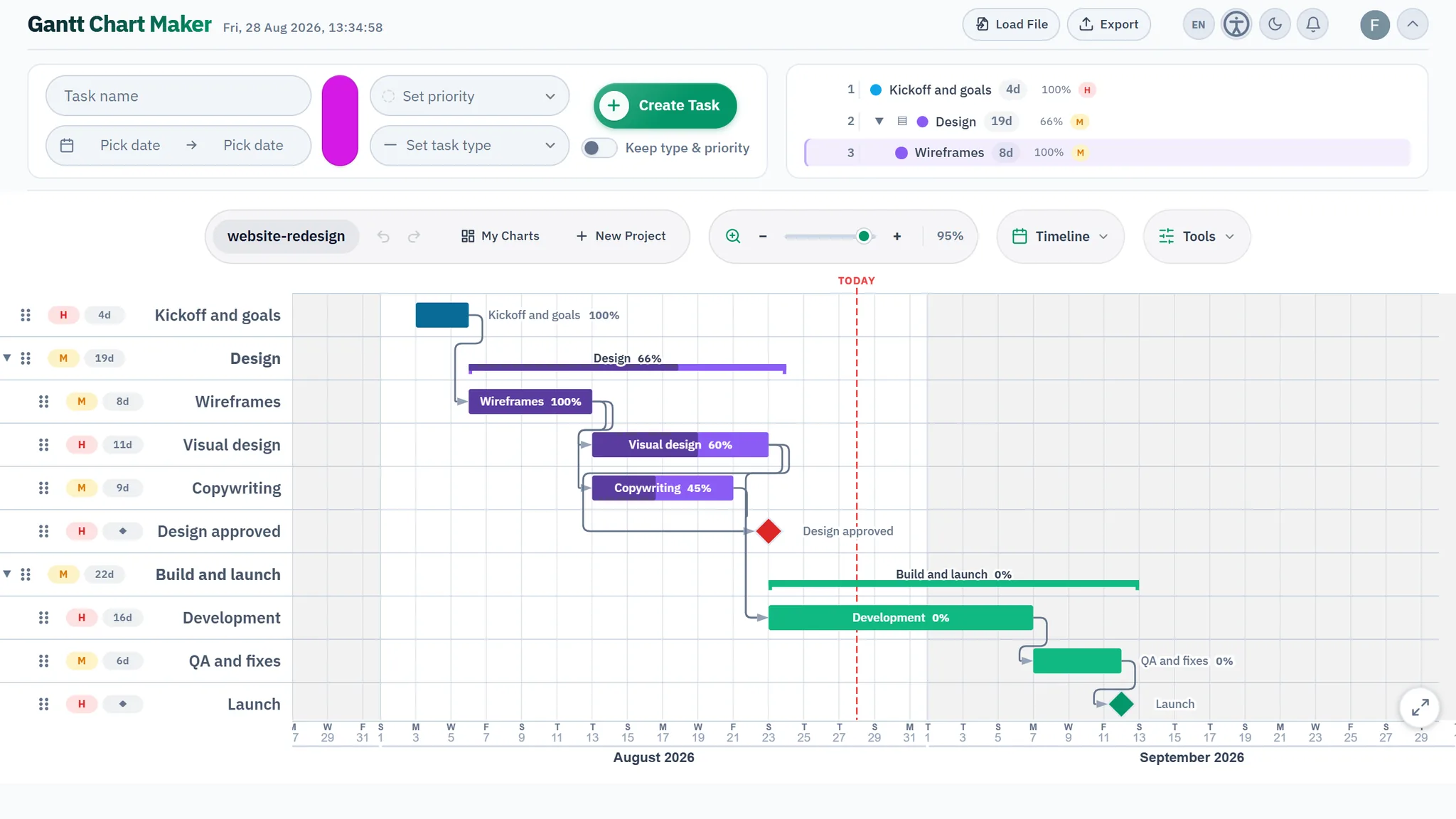
A plan is only the starting gun. As work proceeds, shade each bar to show how far along it is, and make sure the chart shows a today line — a vertical marker on the current date. Together those two things answer the only question a glance at the chart needs to answer: are we ahead or behind? A bar whose shading hasn't reached the today line is running late.
The unglamorous truth is that this last step is where most Gantt charts die. A plan drawn once and never revisited is decoration. Update it on a fixed rhythm — weekly is plenty for most projects — and when reality diverges from the plan, change the plan rather than quietly ignoring it. A chart that tells you uncomfortable things is doing its job; one that always looks fine has usually stopped being true.
Three ways to build one — and the honest trade-offs
You can produce a Gantt chart in three broad ways, and the right choice depends on how much your plan will change.
A spreadsheet
Free, available, and familiar. You can fake a Gantt chart with a grid of cells, conditional formatting, or a stacked bar chart, and for a tiny one-off plan that's fine. Be honest about the cost, though: dependencies don't recalculate, so when one task slips you re-shuffle every downstream bar by hand. There's no real today line, no automatic critical path, and the whole thing grows brittle fast. A spreadsheet Gantt is best thought of as a drawing of a plan, not a model of one.
A dedicated tool
An app built for the job — including this one — handles the parts that make a spreadsheet painful. Dependencies recalculate when something moves, the today line and critical path are automatic, and dragging a bar updates everything that depends on it. The cost is learning one more tool, though a good one is a minute's work to start. If the plan will change even once after you draw it — and it always does — this is where the time pays off. Our comparison of free Gantt tools goes through the options.
Paper or a whiteboard
Underrated for thinking. Sketching bars on a whiteboard with a few colleagues is the fastest way to argue out the sequence and the dependencies before anyone commits them to software. Nobody manages a real project on paper for long — it can't be updated or shared cleanly — but as a first draft, drawn together, it's often the most valuable version you'll make.
A realistic first chart
Don't aim for a masterpiece on the first pass. Get the tasks and the main dependencies down, set a start date, look at the end date, and react to it. Then iterate. A Gantt chart is a working model you refine, not a document you finish and frame — and the discipline of keeping it close to the truth, week after week, is what turns it from a picture into a tool you actually steer by.
Frequently asked questions
How long should it take to make my first Gantt chart?
For a small project of fifteen to thirty tasks, expect roughly an hour of real thinking — most of it spent listing tasks and deciding dependencies, not drawing. In a dedicated tool the drawing itself takes minutes; in a spreadsheet, longer, because you position everything by hand.
Should I add dependencies or dates first?
Dependencies first, where they exist. Let the links position most tasks automatically, then pin hard dates only on the handful of tasks the outside world actually constrains. Pinning a date on everything throws away the schedule logic that makes the chart useful.
How detailed should the tasks be?
No task should be shorter than the smallest unit you track. If you review the plan weekly, sub-day tasks add noise without adding control. Aim for items of roughly half a day to two weeks, and tuck fine detail under collapsible phases.
Do I need to know the critical path to make a useful chart?
No, but it is worth finding. Even a chart without an explicit critical path helps you see timing and overlap. Identifying the longest dependent chain just tells you which tasks actually drive the end date, so you know where to focus.
Build it free, right now
Gantt Chart Maker runs entirely in your browser — no signup, no account, nothing to install. Open it and start a plan in under a minute.