Why one sheet is not enough
Printing scales the whole chart down until it fits the paper. On a long plan, the number of rows decides how small everything gets.
Our example is a library build: 73 rows spread over fourteen months. Fitted onto one sheet of A4, its task names print at about 3 point, a third of the size of newspaper text. Split across six sheets, the same names print at about 9 point, which is newspaper size, and the finished poster measures 34 by 75 centimetres.
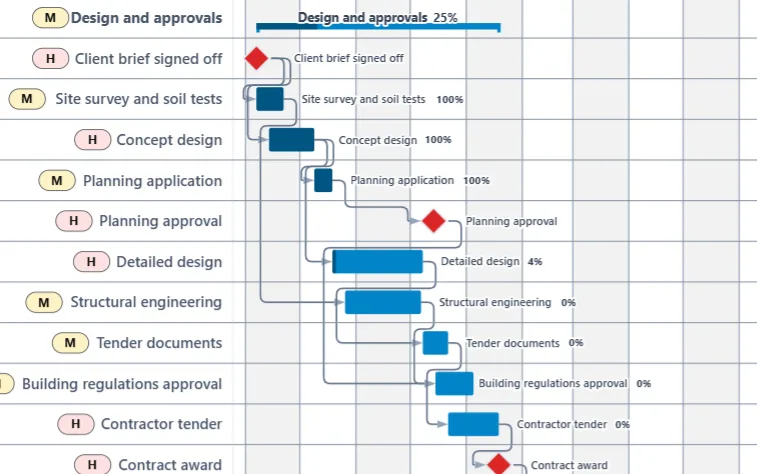
One sheet: names at about 3 point
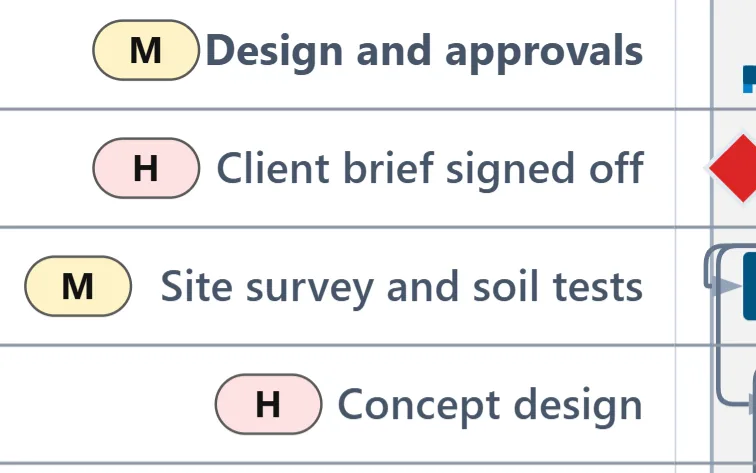
Six sheets: names at about 9 point
Split a chart across sheets in four steps
Open the print window
Press Ctrl+P (⌘P on a Mac), or choose Export and then Print.
Choose the paper
Pick A4, US Letter or any size from A5 to A0, in portrait or landscape. Smaller margins leave more room for the chart.
Choose Poster to tape together, then the sheets
Pick a grid from 2 × 2 to 5 × 5, or untick Equal columns & rows and set the columns and rows yourself. The line under the preview tells you the size of the finished poster and how big the task names will print, before you use any paper.
Print
The app opens your browser’s print dialog and saves a PDF copy at the same time, so you can print it again later or send it to a print shop.
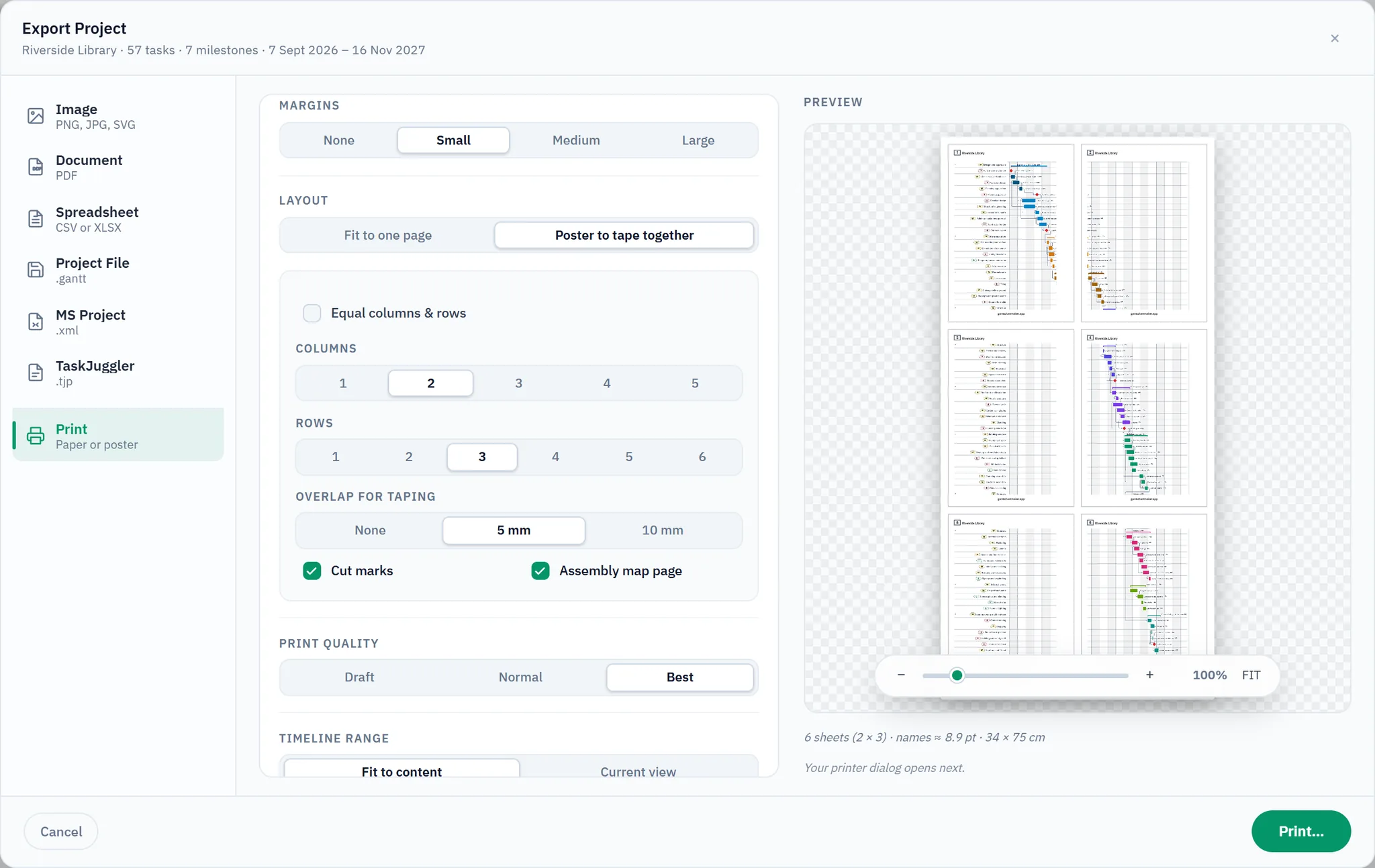
What comes out of the printer
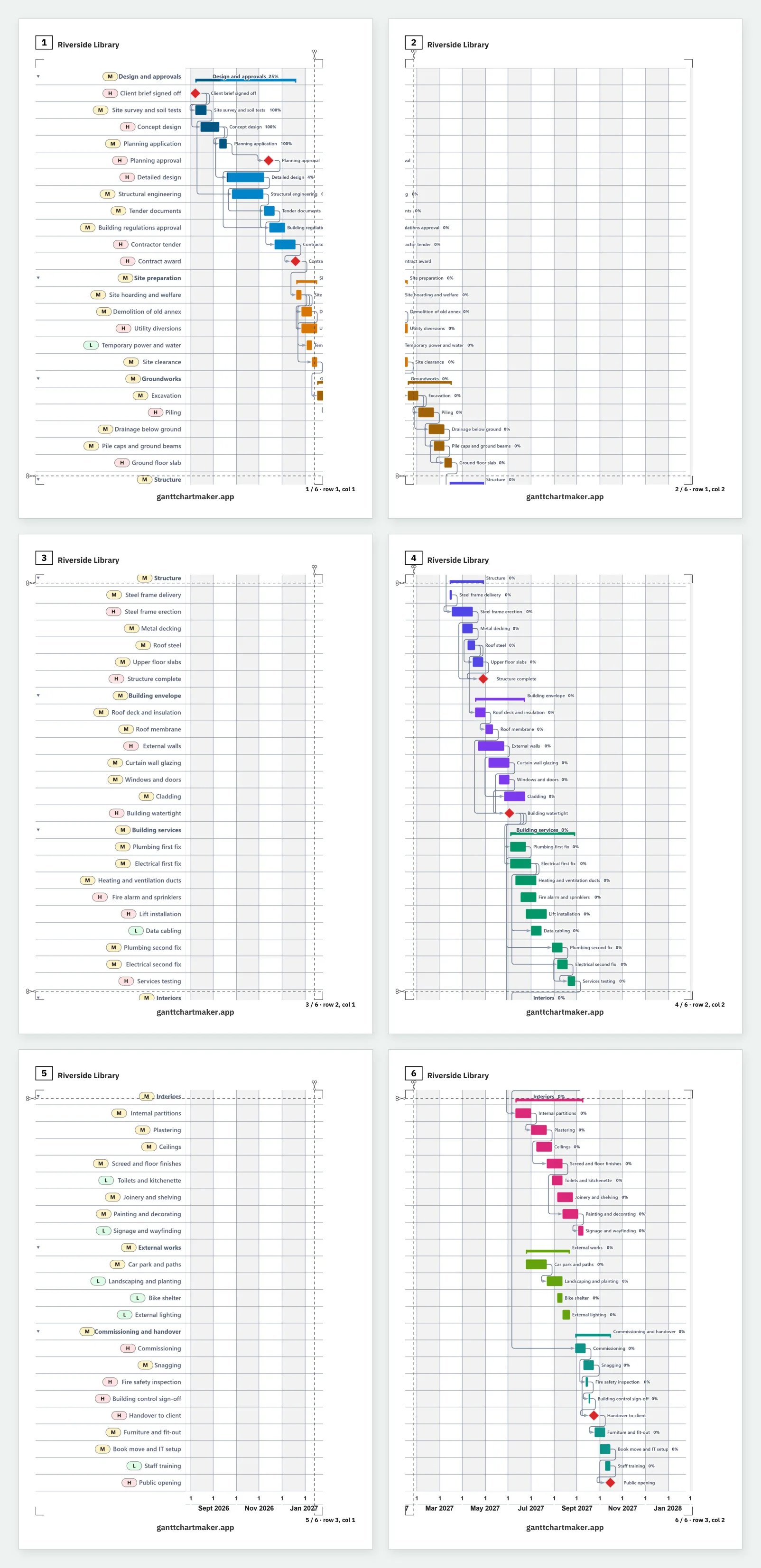
Six sheets of A4, all the same size. Each one carries its number in a box at the top and its place in the grid at the bottom, such as row 2, column 1, so a stack of sheets still makes sense an hour later.
Dashed lines mark the strip that also prints on the neighbouring sheet, so the two can be matched up. At each seam, trim one sheet along its dashed line, lay it over its neighbour with the chart lined up, and tape it from behind. A small pair of scissors marks the start of every line.
The first page of the PDF is the assembly map: the whole grid drawn to scale, every sheet numbered, so you know the layout before you start taping.
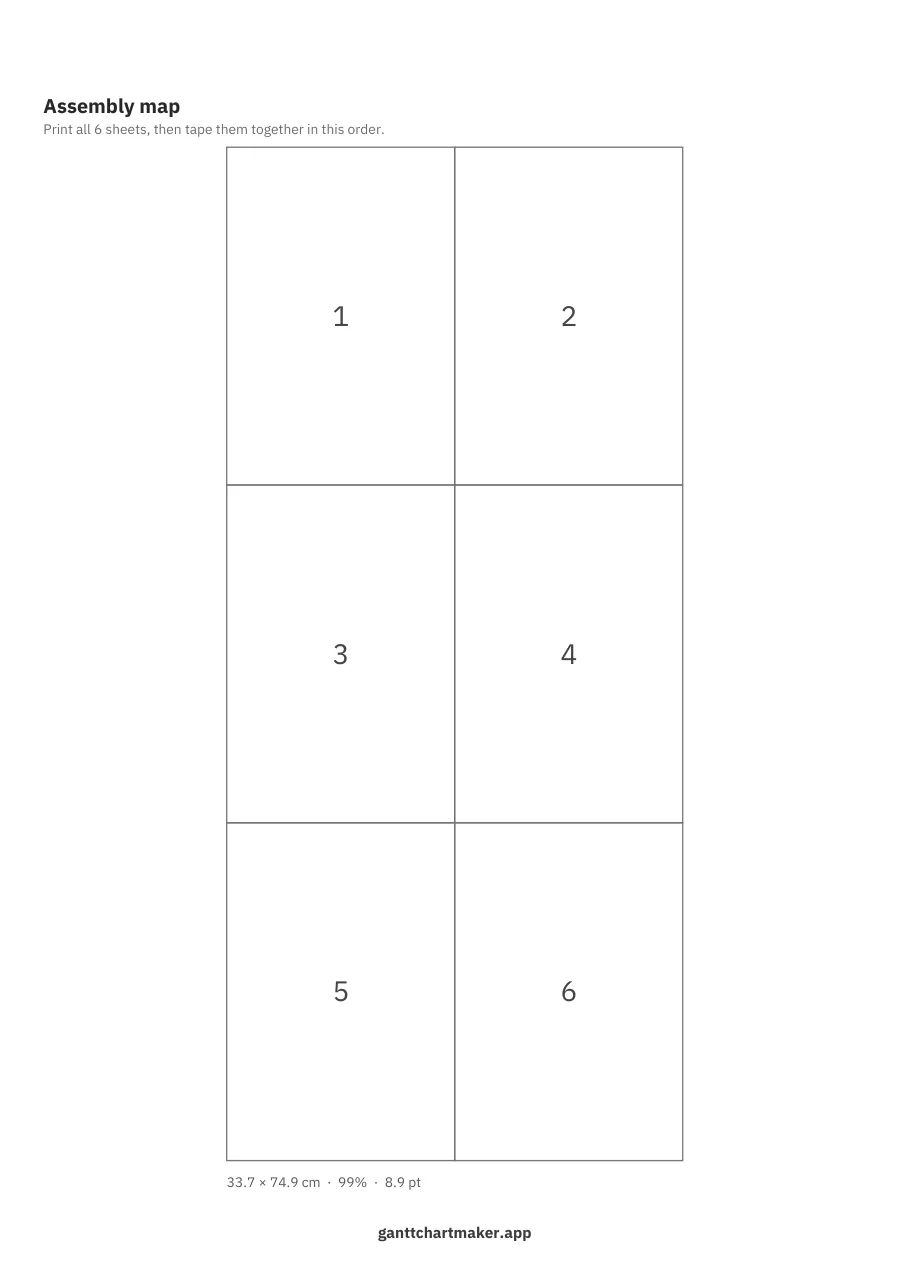
How big will it print?
You choose the grid and the size follows from it. These are the app’s own figures for the library plan on A4, in portrait.
| Sheets | Grid | Finished poster | Task names print at |
|---|---|---|---|
| 1 | One sheet | 11 × 25 cm | about 3 point |
| 4 | 2 × 2 | 23 × 50 cm | about 6 point |
| 6 | 2 × 3 | 34 × 75 cm | about 9 point |
| 9 | 3 × 3 | 34 × 75 cm | about 9 point |
| 12 | 3 × 4 | 45 × 100 cm | about 12 point |
| 20 | 4 × 5 | 56 × 125 cm | about 15 point |
On US Letter, everything comes out about 7% smaller. The chart keeps its proportions, so whichever direction runs out of paper first sets the size. This plan is tall, which is why 2 × 3 and 3 × 3 give the same poster, and the third column only adds paper. The line under the preview shows this as you change the grid.
Made for real printers, not just for screens.
An overlap for the tape
Neighbouring sheets share a 5 or 10 millimetre strip, so the seams line up and the tape has something to hold. Choose no overlap if you would rather trim and butt the edges.
Black and white that stays readable
On a mono printer a dozen bar colours turn into the same grey. Black and white mode spreads them over clearly different greys, outlines every bar and sets the text in bold.
Sharp at any size
Print quality goes up to 300 dots per inch, and each sheet is drawn at full resolution rather than enlarged from a small picture. Paper runs from A5 to A0, plus the US sizes.
In black and white, without the grey mush
The same part of sheet 4, printed in colour and with Black and white turned on.
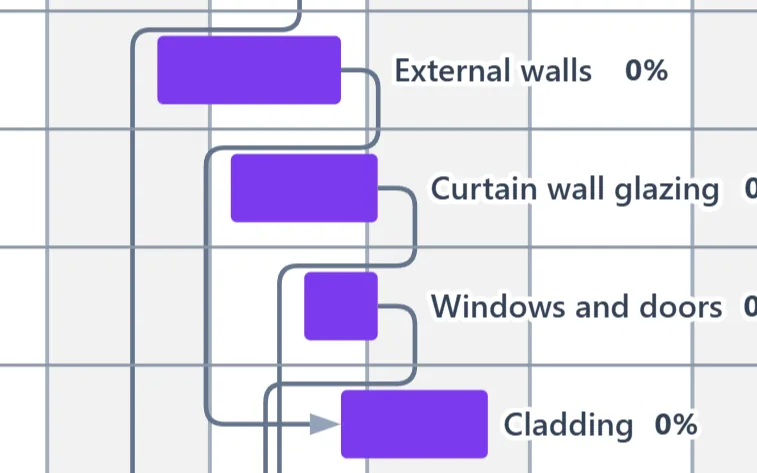
Colour
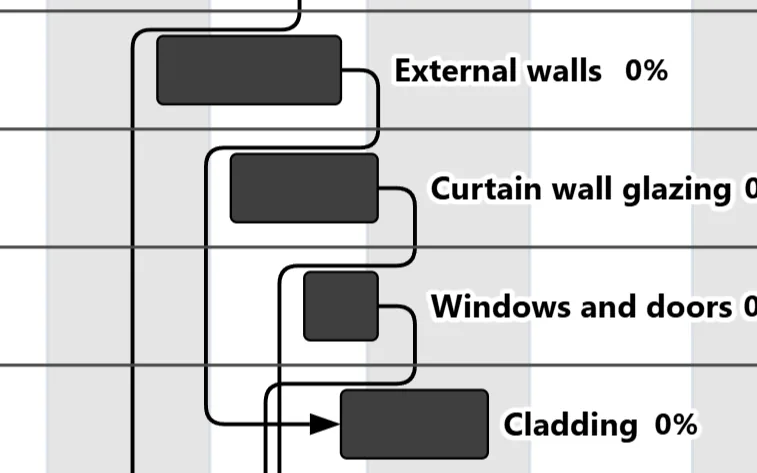
Black and white
Questions
Can I print my Gantt chart on one page instead?
Yes. Choose Fit to one page and the whole chart is scaled onto a single sheet. That suits a short plan; on a long one the names get small, as the close-ups above show.
Which paper sizes can I use?
A5, A4, A3, A2, A1 and A0, B5, B4 and B3, and US Letter, Legal, Tabloid and Executive, each in portrait or landscape.
Can a print shop print it as one big sheet?
Yes. Choose A1 or A0 with Fit to one page and send the PDF to the shop. Printing always saves a PDF copy, and Export, then Document, saves one without printing.
Why are some sheets almost empty?
A Gantt chart runs from the top left to the bottom right, so the corners away from that line hold only the grid. Those sheets still carry the grid, and on the bottom row the dates, so the poster joins up.
Do I need an account to print?
No. Printing, posters and PDFs all work without signing in, and the PDF is made in your browser.
More answers
Print your own chart
Open a chart, press Ctrl+P and choose your sheets. No account, no install, no card.